

Editor Instruction
TOOL BAR
The tool bar for all members provides the tools below:

Undo Duplicate Move Upwards Open Preview Submit
Redo Delete Move Downwards Abort Save
Buttons from left to right provide the following functions:
• Undo - undo/cancel the last action.
• Redo - redo the undo/cancelled action.
• Duplicate - make a copy of the current selected object(s).
• Delete - remove the current selected object(s).
• Move Upwards - bring the current selected object(s) up by one layer.
• Move Downwards - bring the current selected object(s) down by one layer.
• Open - open an image file or ChiButtons design template file. (.cb file)
• Abort - erase the current design and start a new one.
• Preview - preview the design's mockup.
• Submit (only available for login users) - save a copy of the current work on ChiButtons server. Website administrators can access this file and use it to process future orders.
• Save - you can download the current design as a ChiButtons design template file (.cb). This file can be opened with the ChiButtons Editor for future use.
The tool bar for subscribed members:
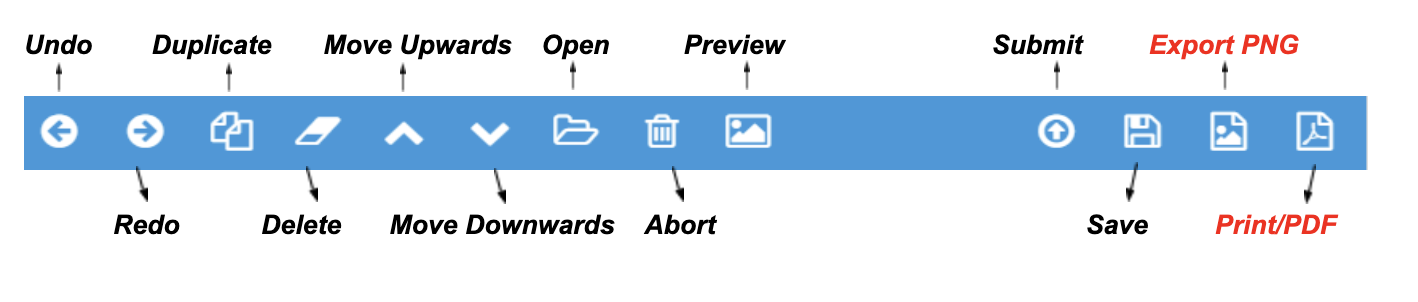
Undo Duplicate Move Upwards Open Preview Submit Export PNG
Redo Delete Move Downwards Abort Save Print/PDF
The extra two buttons on the right end are:
• Export PNG - export the current design as an image file (i.e. PNG format) for your future use.
• Print/PDF - export your designs to an array of button images with the sizes you selected. With
this feature, you can create buttons easily with your ChiButtons machines.
OBJECTS PANEL
Templates tab

You may expand the "Templates" tab by clicking the arrow in the tab.
The template section contains a set of pre-design ChiButtons templates. Each template contains one or more
editable objects. You may select a pre-designed template to use in the editor and integrate it into your designs.
You may also use the tool bar to insert and edit objects. Once finished, you can use the "SAVE" button from the
tool bar to save it as your own template for future use or button orders.
Background tab

You may expand the "Background" tab by clicking the arrow in the tab.
You could select a color for the background of your design. Also, you could select an image for the background.
The background layer is always placed under all other objects.
Image tab

You may expand the "Image" tab by clicking the arrow in the tab.
You can insert an image provided by ChiButtons in this area. You can also upload your own image by clicking the "Insert Image" button in this section. You can then use the controller to change settings for the selected image's
• Transparency
• Remove White
• Grayscale
• Sepia
• Invert Colors
Text tab

You may expand the "Text" tab by clicking the arrow in the tab.
You can use this area to insert texts and change their settings with the tools of this section.
Shape tab

You may expand the "Shape" tab by clicking the arrow in the tab.
ChiButtons have supplied the most common types of geometric shapes for you to use in the design. You can insert shapes found under this section.